 Nexus
NexusGuides → Put your Zendesk queue on a TV
How to put your Zendesk queue on a TV
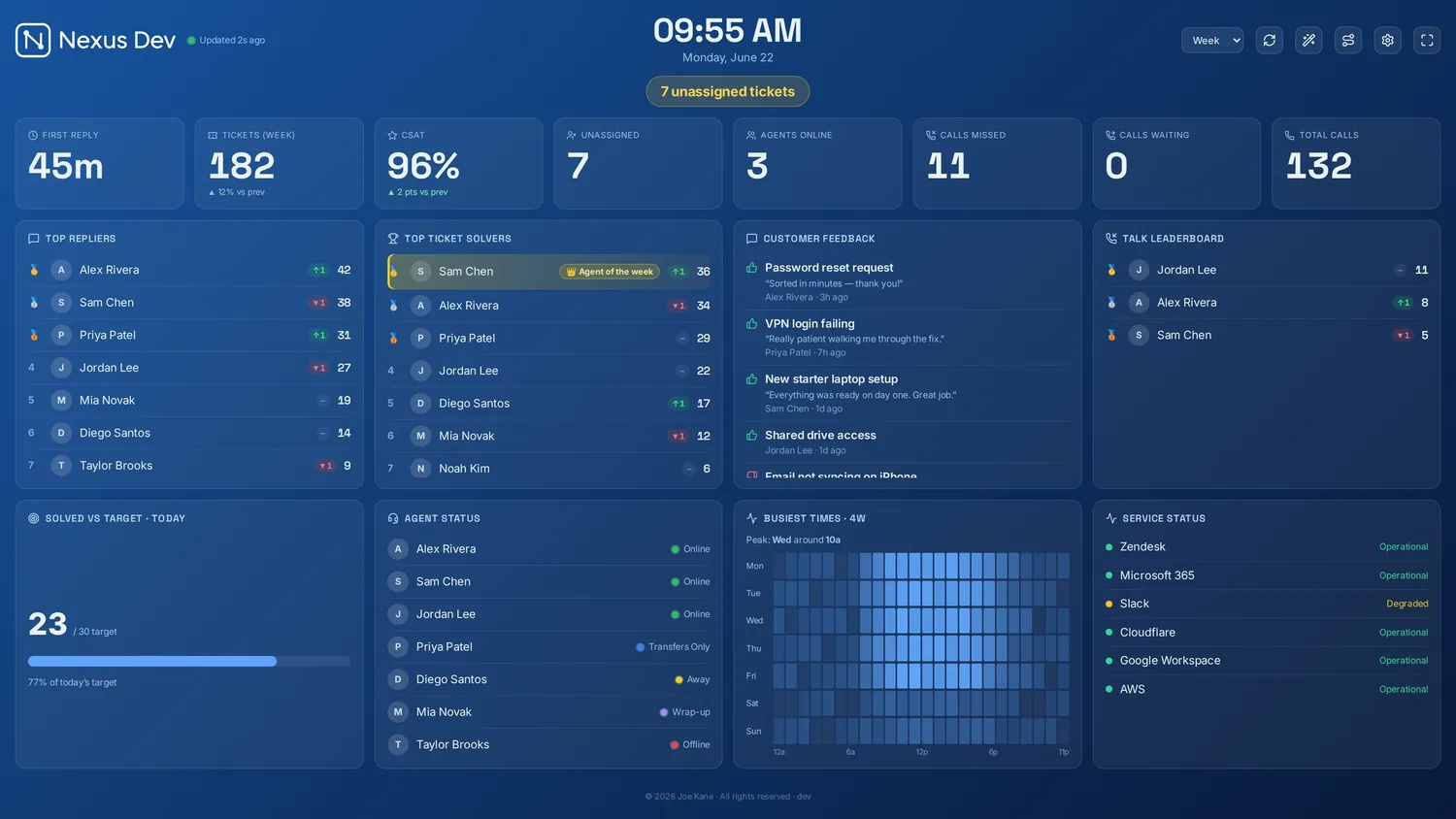
Putting your live Zendesk queue on a wall TV is one of the cheapest ways to lift a support team's performance: when everyone can see the queue, the SLAs and who's picking up, the room self-corrects before tickets breach. Here's how to do it properly — including the part most guides skip: keeping your customer data off third-party servers.
Why a wallboard works
A shared, always-on view turns abstract numbers into shared awareness. Agents pick up faster when they can see the queue growing. Team leads spot a breach risk across the room instead of refreshing a dashboard. And a visible CSAT or "Agent of the Week" panel does more for morale than any spreadsheet. The goal isn't surveillance — it's a single source of truth the whole floor reacts to.
What you'll need
- A TV or large monitor with an HDMI input (most office TVs are fine).
- Something to drive it: a mini-PC, an old laptop, an Apple TV/Chromecast, or a smart TV browser.
- A Zendesk account with API access (an admin can generate an API token).
- A wallboard app that reads Zendesk and is built to live on a screen all day.
The options, briefly
You broadly have three routes:
- Zendesk's built-in dashboards / Explore. Good for historical reporting, but not designed to live on a TV — refresh is periodic and the live widgets are limited and plan-gated. (More on this in our Zendesk Explore alternative guide.)
- A cloud wallboard (Geckoboard, Plecto and similar). Purpose-built for TVs, but they ingest your ticket data into their cloud and usually price per dashboard or seat.
- A self-hosted wallboard (such as Nexus). Runs on your own machine, reads Zendesk directly, and your customer data never leaves your network.
Which is right depends on how much you care about data ownership and predictable cost — see self-hosted vs cloud wallboards for the trade-offs.
Step by step (the self-hosted way)
- Pick the screen and a player. A £100 mini-PC running a browser in kiosk mode is the most reliable option; a smart-TV browser works for a simpler setup.
- Install your wallboard. With Nexus, run the desktop app or the Docker server on hardware you already own. There's no cloud of ours in the path.
- Connect Zendesk. In the first-run wizard, enter your Zendesk subdomain and an API token. The board reads Zendesk Support and Talk directly.
- Choose your panels. A good starting layout: open/pending tickets by view, SLA countdowns, the live Talk call queue, and an agent leaderboard with CSAT.
- Set refresh and rotation. Tickets every ~60 seconds, calls every ~20 seconds. If you have more panels than fit, rotate them on a timer.
- Go full-screen and lock it. Use kiosk/lock mode so the board survives reboots and nobody nudges it off-screen.
Tip: mount the player behind the TV and set it to power on with the screen, so the wallboard comes back by itself after a power cut or an out-of-hours shutdown.
What to show (and what to leave off)
Keep it glanceable. A wall is read from across the room, so favour big numbers and clear states over dense tables. Show the things the team can act on right now — queue size, oldest ticket, SLAs about to breach, calls waiting — and save the deep historical analysis for a desktop report. Colour matters: SLAs that turn amber then red give the room a shared sense of urgency.
Keeping customer data on your own server
This is the part worth pausing on. Many wallboard products work by pulling your ticket data into their cloud and rendering the board from there. For a lot of teams — anyone handling regulated data, or simply uncomfortable with customer information sitting on another vendor's servers — that's a problem. A self-hosted wallboard reads Zendesk's API from your infrastructure and renders locally, so the data never makes that hop. It also keeps working if the vendor's cloud has an outage.
See it on your own wall
Nexus is a self-hosted Zendesk wallboard — live Support + Talk, SLA countdowns, CSAT and leaderboards on a TV. Try the demo with no account, no card. Every plan then starts with a 14-day free trial, billed only if you keep it.